
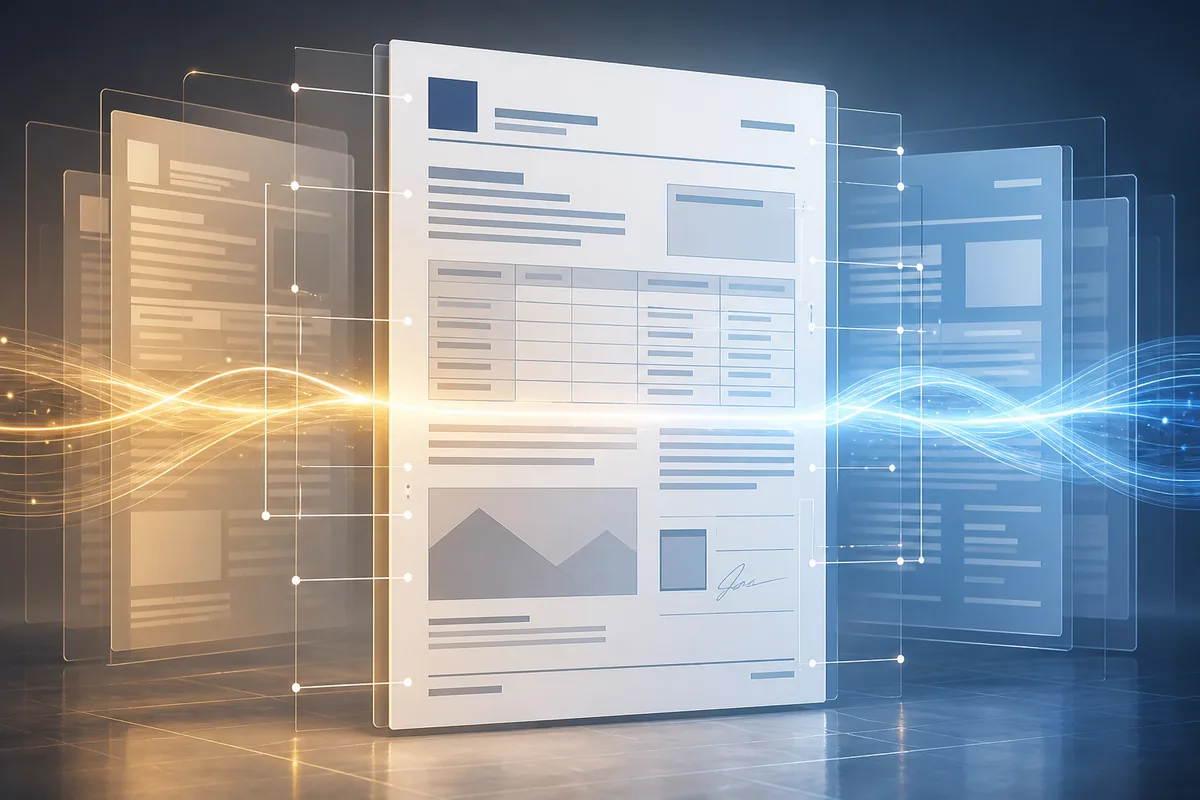
PDF translation has always had the same frustrating catch: the words come out right, but the document looks nothing like the original. Tables shift out of place, headers vanish, footnotes end up in the wrong spot. Fixing it manually can easily take longer than the translation itself — and for contracts, official letters, or formal reports, that broken layout isn't just an inconvenience, it makes the file unusable. SonikaAI's Document mode now solves this for PDFs, preserving tables, headers, footnotes, and the full layout so no manual reformatting is needed after translation.
What changed and why it matters
Until now, SonikaAI handled PDFs the same way it handles books: extract the text, translate it, and return a clean reading copy. That's exactly right for a novel or a research paper you want to read. But a multi-page contract or a letter printed on a headed form stops being itself after that kind of processing — the structure is gone and the file is effectively broken. Document mode changes that. PDFs can now be processed the same way DOCX and ODT files are, with the translated text written back into the original layout rather than extracted and reflowed from scratch.
How it works in practice
The approach is straightforward: translated text is placed back into the same positions on the original pages. Headers, footers, page numbers, footnotes, and image captions stay exactly where they were. Images are untouched. What comes out is a PDF ready to sign or forward — not a file that needs to be rebuilt before it's usable again. This is what a formatted PDF translation tool should do, and it's what Document mode now delivers for PDFs with a real text layer.
One thing to keep in mind
Document mode works only with PDFs that contain selectable text — files originally created in Word, LibreOffice, or a similar application where you can highlight text with the mouse. Scanned PDFs, where each page is essentially a photograph, are not supported by this mode. For those, and for any PDF you want to read or listen to with chapter navigation, Book mode is still the right choice. The two modes are now a genuine fork: Book prepares the text for reading and narration; Document keeps the file looking and behaving like a document.
How to use it
The mode selection appears on the first screen right after you upload your file. Previously, choosing Document for a PDF made little practical difference — both paths produced a book-like output. Now the choice is real. Pricing and page limits are unchanged; a PDF processed in Document mode counts the same as a Word document. Freelance translators delivering formatted files to clients, and professionals who regularly deal with multi-page contracts or official correspondence, will feel the difference most directly: the output is ready to use without any extra steps.
If you've been spending time rebuilding PDF layouts after machine translation, that step is no longer necessary for files with a real text layer. Start free — no card required, and the first section of your document is processed at no cost so you can see the result before committing to the full run. You might also find it useful to read about how SonikaAI handles formatting in Word documents — the same principles apply across all supported formats in Document mode. If you're comparing PDF translation options, see the PDF translation comparison page.